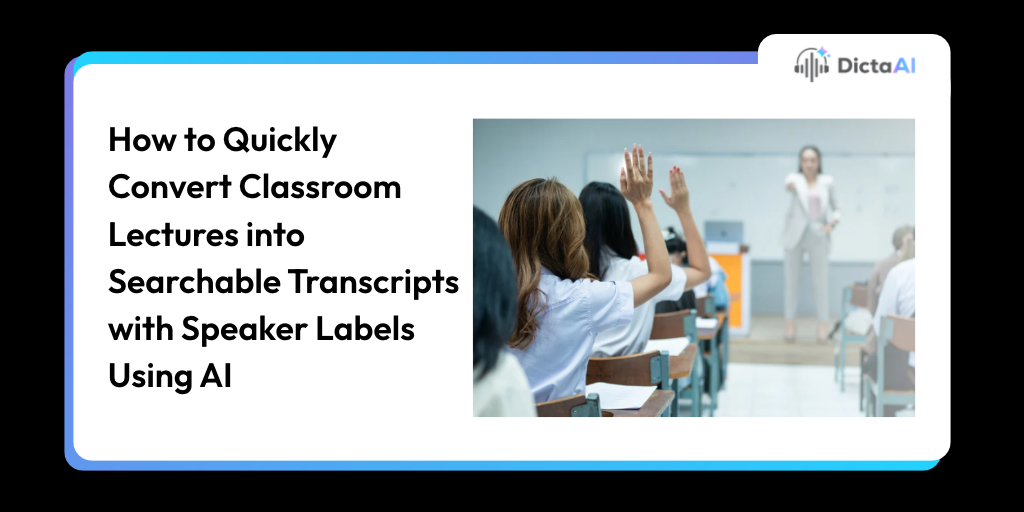
Imagine a student preparing for a biology exam who remembers an instructor explaining how sunlight affects photosynthesis. The explanation was part of an 80-minute lecture, but finding it means searching through the recording and hoping to recognize the right moment.
Now imagine having the same lecture in text form, complete with speaker labels and timestamps. Instead of replaying the entire class, the student can search for the topic, review the explanation, and locate the relevant part of the recording.
That's what AI lecture transcription makes possible.
Lecture recordings preserve the full discussion, but finding information inside them isn't always easy.
A single class may include definitions, demonstrations, student questions, and explanations spread across different parts of the session.
Searchable lecture transcripts bring that information into a format students can navigate more easily.
They help users:
Timestamps and speaker labels provide additional context, helping readers understand where information appeared and who contributed to the conversation.
The lecture-to-text process starts with a clear recording. Once the audio is transcribed, students and instructors can review speaker labels and search the content.
Good audio makes a noticeable difference in transcription quality.
Place the recording device close enough to capture the instructor's voice. If students frequently ask questions, an instructor can repeat questions aloud or use a classroom microphone so their contributions are also recorded clearly.
Try to minimize background conversations, microphone interference, and overlapping speech.
Before recording, make sure the institution permits it and that any required permissions have been obtained.
Upload the lecture recording to DictaAI in a supported audio or video format, such as MP3, WAV, M4A, MP4, or MOV.
Individual uploads must be under 1 GB and shorter than five hours. Longer recordings can be divided into smaller files.
For online classes conducted through Zoom, Google Meet, or Microsoft Teams, DictaAI Notetaker can capture supported meetings and provide recordings and transcripts after the session. This feature is available through eligible paid plans.
After processing, DictaAI generates a transcript with timestamps and speaker labels that students and educators can review.
Speaker identification separates different voices within a recording and assigns labels such as Speaker 1, Speaker 2, and Speaker 3.
These labels help distinguish the instructor's explanations from student questions. However, they do not automatically confirm each person's name or classroom role.
For example, Speaker 1 may be the instructor, while Speaker 2 may be a student asking a question.
Listen to the relevant sections to confirm those identities. If you need descriptive labels for a shared document, download the transcript in Word or TXT format and make the changes there.
Also Read: How Does Speaker Identification Work in AI Transcription?
Consider a fictional biology lecture discussing photosynthesis.
A speaker-labeled transcript might contain:
[12:18] Speaker 1 — Instructor: "Photosynthesis converts light energy into chemical energy."
[12:34] Speaker 2 — Student: "Does photosynthesis happen without sunlight?"
[12:41] Speaker 1 — Instructor: "The light-dependent reactions require light, although other stages use the products of those reactions."
*Illustrative example only; not an actual DictaAI transcript.
A student reviewing the lecture could search for "sunlight" to find the question, read the instructor's response, and use the timestamp to locate the relevant section in the original recording.
This is especially useful in classes where questions and explanations appear throughout a long discussion rather than in neatly separated sections.
Once the lecture has been converted into text, there are two practical approaches to finding information.
Download the transcript in Word or TXT format and use the Find function (Ctrl+F on Windows or Cmd+F on Mac) to locate a term.
For example, searching for "photosynthesis" may identify the sections where the instructor introduced or discussed that concept.
Read the surrounding text before relying on the result. A keyword may appear several times, and the first match may not contain the explanation you need.
Keyword search works best when you remember the terminology used during the lecture.
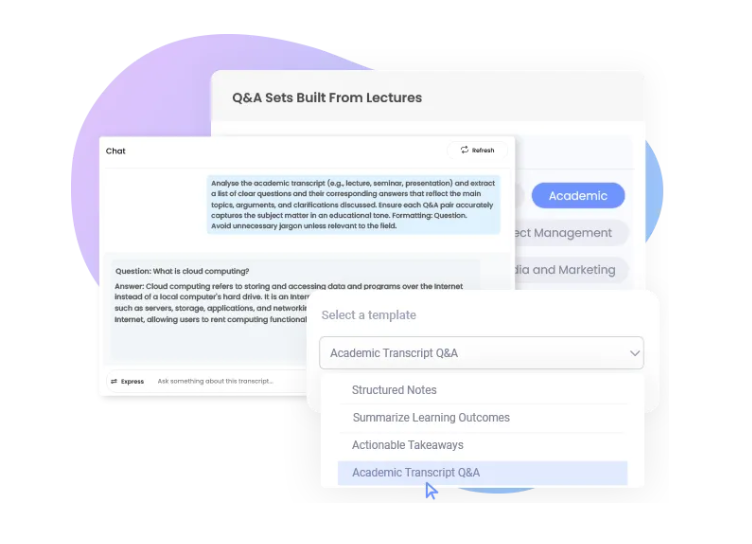
Sometimes students remember the concept but not the exact words used by the instructor.
DictaLens can help with that.
Open AI Analysis, select the lecture transcript, and click Analyze Files. Then enter a question such as:
DictaLens generates responses based on the uploaded content, helping students locate relevant information even when they cannot remember the original wording.
Because AI-generated responses can miss context, important explanations should still be checked against the transcript or recording.
Yes. DictaLens supports multi-file analysis, allowing students and educators to investigate topics across several recorded lectures.
Suppose photosynthesis was introduced in Lecture 1 and revisited in Lecture 3.
Instead of opening both transcripts separately, you could ask:
"Compare how photosynthesis was explained in Lectures 1 and 3. Identify the main concepts discussed in each session."
This helps students connect related material across classes.
DictaLens can also analyze supporting PDFs, such as lecture slides, on plans that include document uploads.
For a more detailed explanation of turning transcripts into study guides, read How to Use AI to Convert Your Lectures into Organized Notes and Transcripts.
AI transcription makes lecture content more accessible, but a short review can prevent confusion later.
Check speaker labels. Overlapping conversations, distant voices, and short responses can cause speakers to be incorrectly assigned.
Verify academic terminology. Scientific names, technical vocabulary, and spoken mathematical equations may need correction.
Review recording permissions. Permission to record a lecture does not automatically mean the recording can be uploaded to another service or shared publicly.
Protect student information. In the United States, recordings containing identifiable student information may be subject to institutional requirements and, depending on the circumstances, the Family Educational Rights and Privacy Act (FERPA).
These checks make transcripts more reliable and appropriate for classroom use.
A recorded lecture becomes more useful when students can search it, identify speakers, and revisit the exact discussions they need.
DictaAI combines lecture transcription, speaker identification, timestamps, and AI-powered analysis to help students and educators spend less time searching through recordings and more time understanding the material.
Try DictaAI's free Basic plan, which includes 60 transcription minutes each month, and explore how searchable transcripts can support your study or teaching workflow.
1. Can AI automatically convert classroom lectures into searchable text?
Yes. AI transcription converts recorded lecture audio or video into text that can be searched for important terms, explanations, and classroom discussions.
2. Can AI identify different speakers in a classroom recording?
AI can distinguish voices and assign generic speaker labels. However, the labels should be reviewed to confirm whether each speaker is the instructor or a student.
3. How can students search for explanations without knowing the exact words?
Students can use DictaLens to ask questions about the lecture. AI-assisted analysis helps locate relevant information based on the topic rather than relying only on an exact keyword match.
4. Can DictaAI analyze lectures containing technical terminology or multiple languages?
Yes. DictaAI supports multiple transcription languages and technical discussions, although language features vary. Unfamiliar terminology, formulas, and speaker labels should be verified for accuracy.


Comments
Glynnis Campbell
This is a test comment!