
Key Capabilities
DictaAI Notetaker provides a complete AI meeting assistant experience, from live transcription to post-meeting insights.
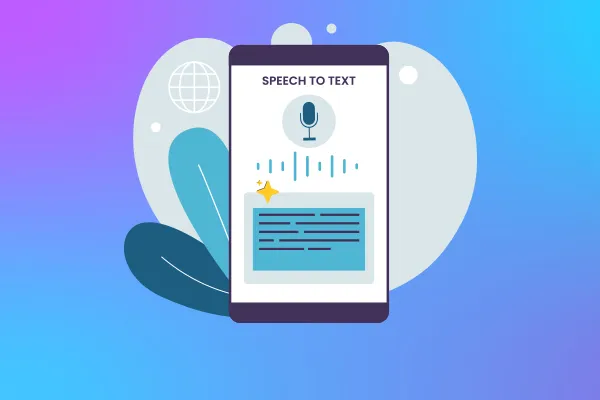
Automatic Meeting Transcription
DictaAI Notetaker joins your meetings automatically and converts speech to text with high accuracy, capturing every spoken word.
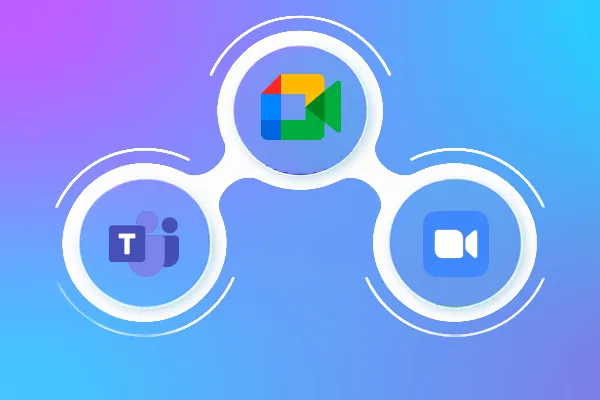
Multi-Platform Support
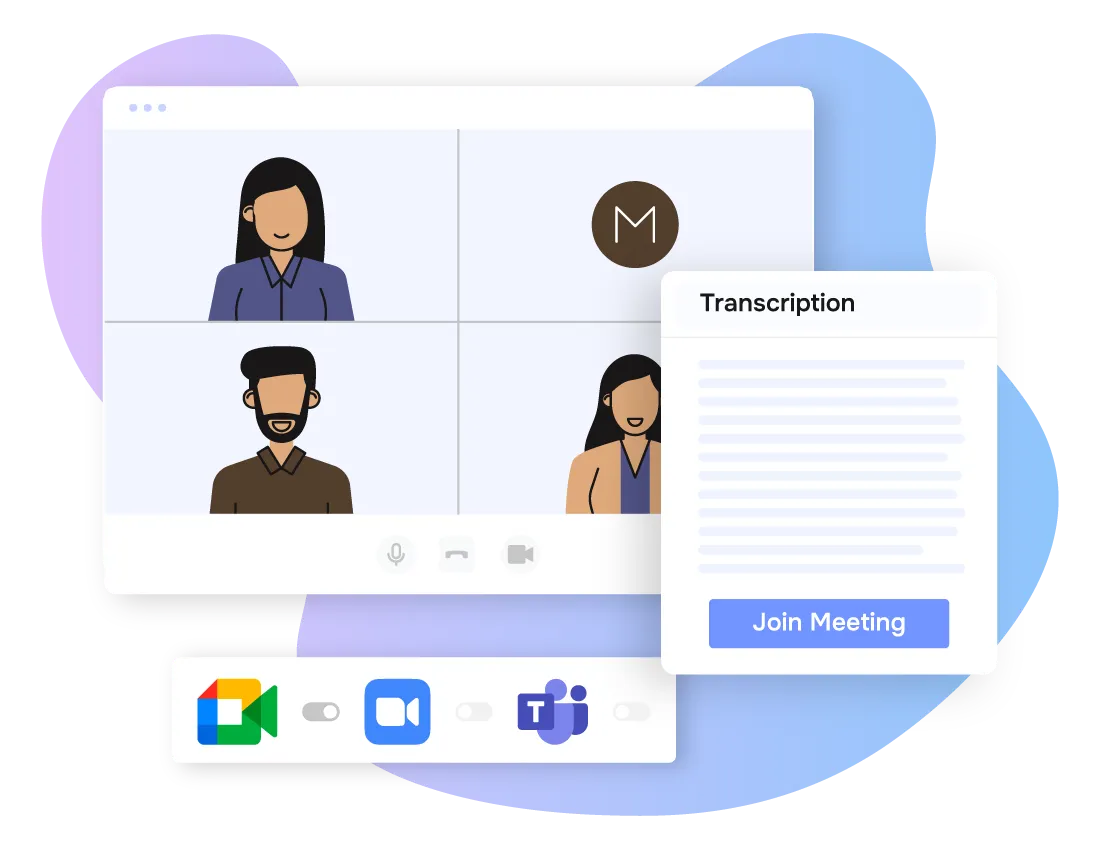
DictaAI Notetaker works seamlessly with Zoom, Google Meet, and Microsoft Teams.
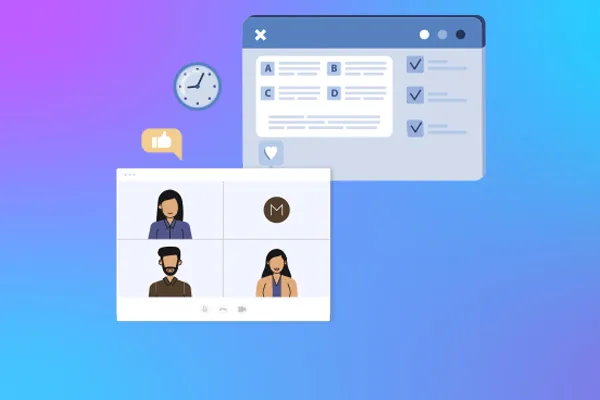
Meeting Summaries & Notifications
After each meeting, the host receives a ready transcript and a meeting summary.
Calendar Integration
Sync Google Calendar or Microsoft Calendar to automatically capture scheduled meetings.

AI Analysis with DictaLens
Recorded meetings can be analyzed using DictaLens to extract summaries, action items, sentiment, and strategic insights.
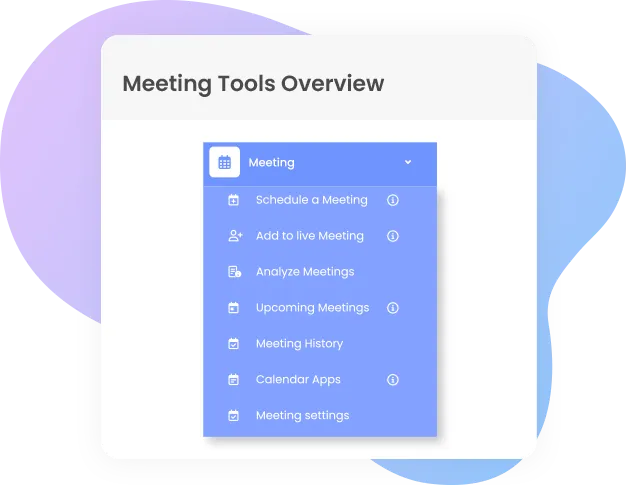
DictaAI Dashboard - Meeting Tools Overview
From the left-hand navigation menu, select Meeting to access the Notetaker tools. You will see the following options:
- Schedule a Meeting
- Add to Live Meeting
- Analyze Meetings
- Upcoming Meetings
- Meeting History
- Calendar Apps
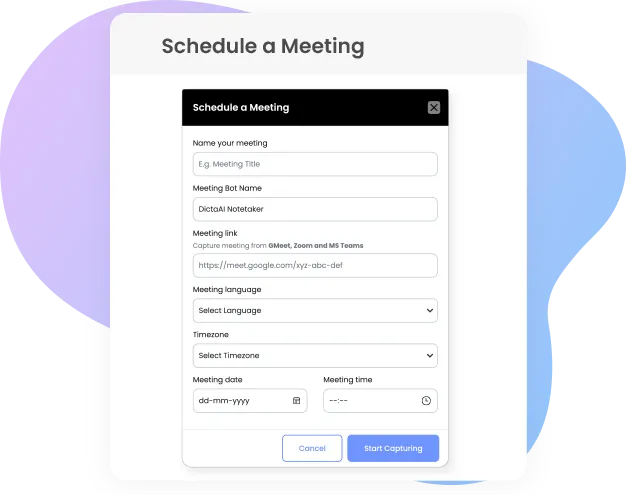
Schedule a Meeting
Use this option to schedule a meeting in advance for transcription.
- Enter a meeting name.
- Set the meeting bot name (default: DictaAI Notetaker).
- Paste the meeting link from Zoom, Google Meet, or Microsoft Teams.
- Select the meeting language.
- Choose the meeting time zone.
- Select the meeting date and time.
- Click Start Capturing to schedule the meeting.
Once scheduled, DictaAI Notetaker will automatically join the meeting at the selected time.
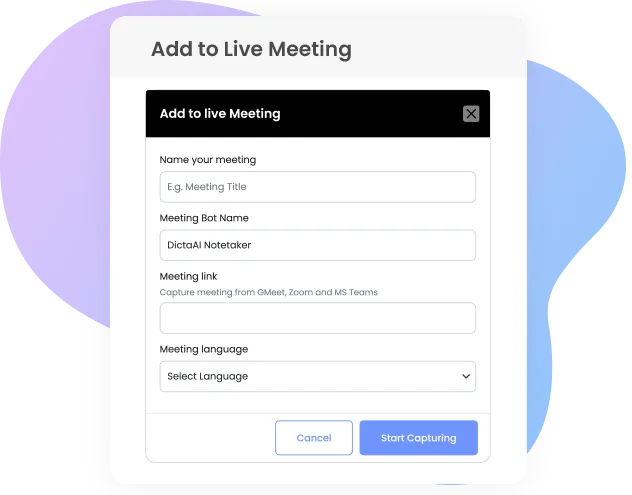
Add to Live Meeting
This option allows you to add DictaAI Notetaker to a meeting that is already in progress.
- Enter a meeting name.
- Confirm or edit the meeting bot name.
- Paste the live meeting link.
- Select the meeting language.
- Click Start Capturing and approve the bot when prompted by the meeting platform.
This is useful for urgent meetings or when a meeting was not scheduled in advance.
Calendar Apps
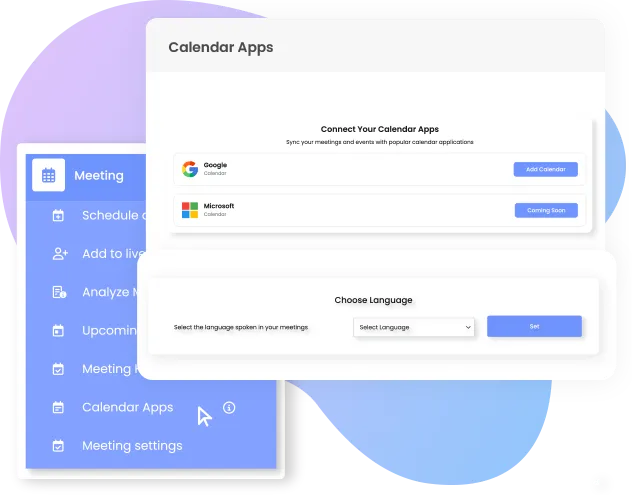
Google Calendar Integration
Connect your Google Calendar to automatically sync scheduled meetings.
- Set the language spoken in your meetings to ensure accurate transcription and AI note taking.
- Select Google Calendar and click Add Calendar.
- Choose your email and complete verification.
- Once connected, meetings appear automatically in the DictaAI Meeting tool.
Disconnect Calendar Apps
You can disconnect Google Calendar or Microsoft Calendar at any time from this section.
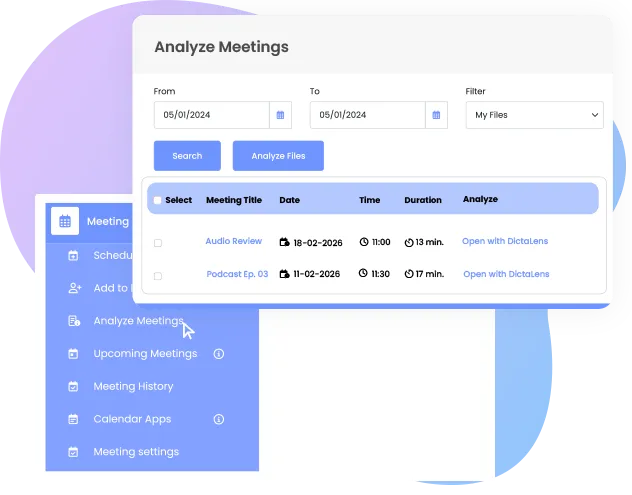
Analyze Meetings
Select a date range to view past meetings. You can open any individual meeting transcript directly in DictaLens for AI-driven analysis, summaries, and insights.
To analyze multiple meetings together, select the desired meetings and click “Analyze Files.” This allows you to generate combined insights, cross-meeting summaries, and deeper contextual analysis across conversations.
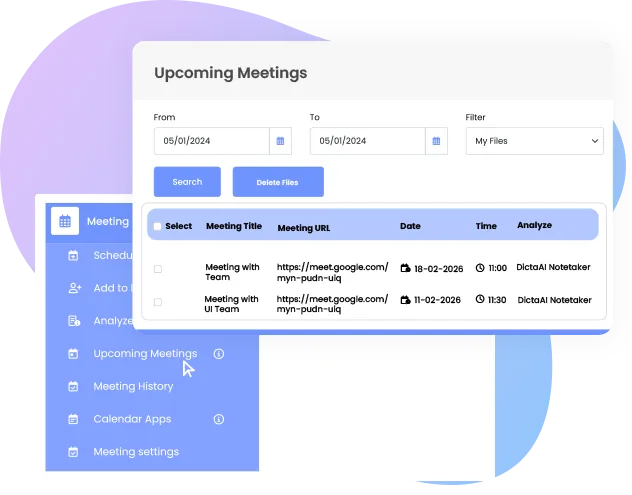
Upcoming Meetings
View all scheduled meetings within a selected date range. From this section, you can cancel or delete meetings before they occur.
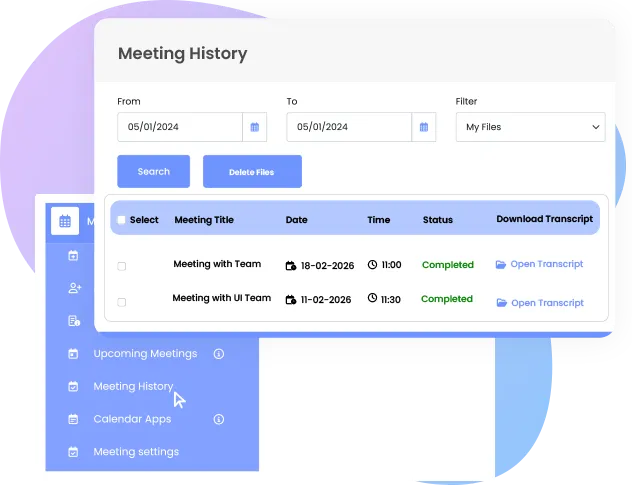
Meeting History
Review completed, cancelled, or unsuccessful meetings by selecting a date range. This section displays meeting status, including cases where the bot was not allowed to join.
You can download your meeting transcript by clicking “Open Transcript” and exporting it in your preferred format. You may also delete meeting files that are no longer required to keep your workspace organized.
How DictaAI Notetaker Works
DictaAI Notetaker follows a simple automated process:
- At the scheduled time, the Notetaker joins the meeting and requests approval.
- During the meeting, it listens to the conversation and then transcribes it after the meeting ends.
-
After the meeting:
- A "Meeting Recorded" notification is sent to the host.
- A "Transcript Ready" notification is sent.
- A meeting summary is emailed to the host.
- The transcript and recording are automatically saved in File History.
Note: The meeting host refers to the user who scheduled the meeting on DictaAI, not the host on Zoom, Teams, or Google Meet.
Managing Meeting Records
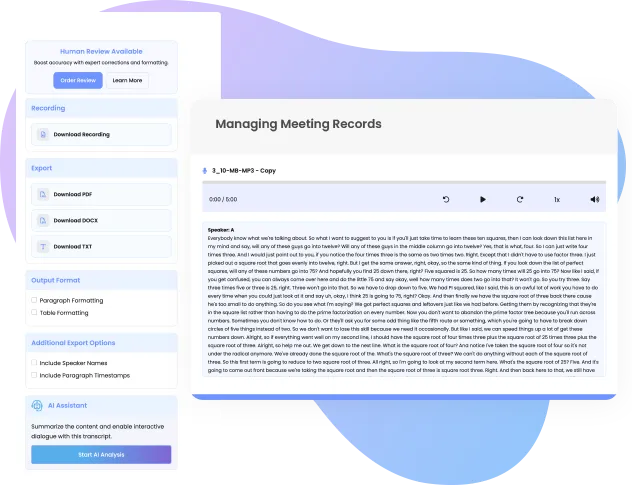
Once a meeting ends, its recording and transcript are stored in File History along with other uploaded files. Open a meeting file and select Open Transcript to download, manage, or analyze the content.
Record and analyze your meetings with DictaAI Notetaker
Schedule a meeting or add DictaAI Notetaker to a live call to automatically capture, transcribe, and generate structured AI meeting notes. Once the meeting is complete, review the transcript, analyze it with DictaLens if needed, and export or reuse the results instantly.