

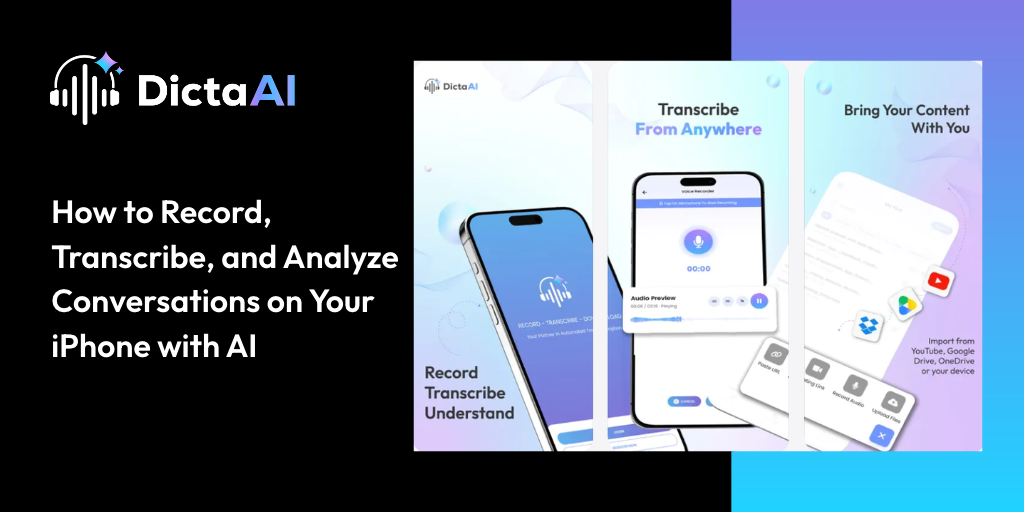
How many voice recordings are sitting on your iPhone that you've never listened to again? Maybe it's a meeting you meant to summarize, an interview you need to revisit, or an idea you recorded before it slipped your mind.
Recording audio is simple. Finding useful information afterward can take considerably more effort.
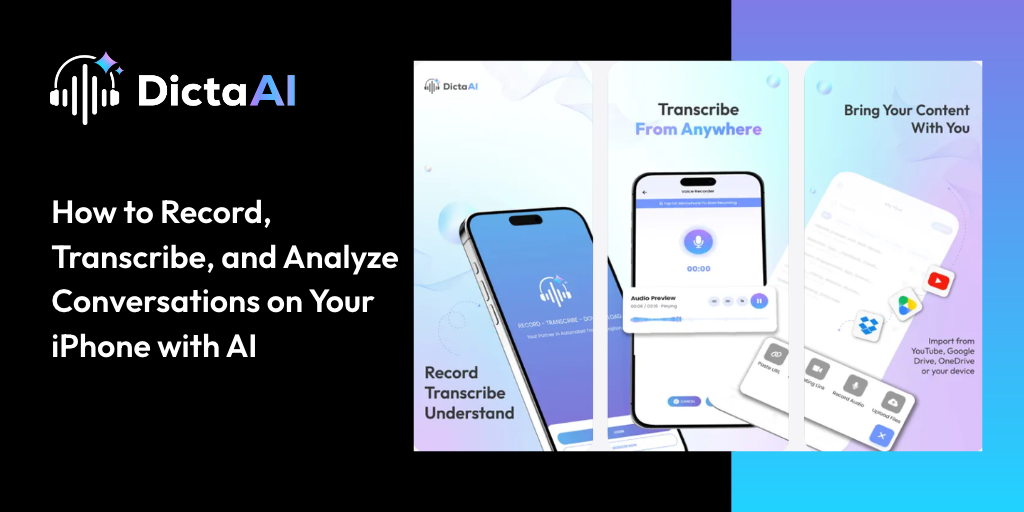
The DictaAI iOS app makes that process easier. As an AI transcription app for iPhone, it brings audio recording, transcription, and conversation analysis into one workflow. You can capture conversations on your iPhone or iPad, convert them into searchable text, and use AI to identify key points, decisions, and follow-up tasks.
Here's how to move from a recording to information you can actually use.
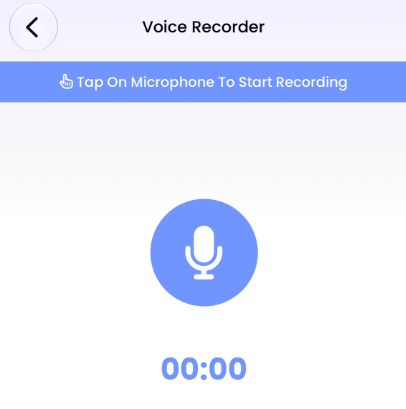
Start by downloading DictaAI from the Apple App Store. Sign in to your existing account or create a new one.
Once you're signed in:
Because DictaAI includes a built-in audio recorder, you can capture conversations and prepare them for transcription without switching between separate recording and transcription apps.
This is particularly useful for research interviews, business discussions, academic lectures, client consultations, and personal voice notes.
Before recording: Inform participants and obtain any consent required by applicable recording laws. For professional conversations, also follow your organization's privacy and confidentiality requirements.
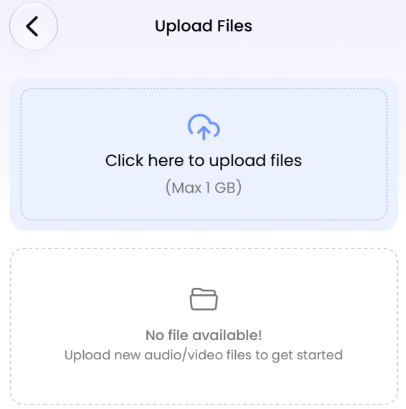
You don't necessarily need to record a new conversation. DictaAI also supports existing audio and video files.
For example, you might have an interview saved on your iPhone, a meeting recording stored in Google Drive, or a video you want to transcribe.
To work with an existing recording:
DictaAI supports imports from your device, Google Drive, Dropbox, and YouTube.
Each uploaded file must be under 1 GB, and its audio duration must not exceed five hours. If you have a longer recording, split it into smaller files before uploading.
The DictaAI audio transcription app supports both direct recording and file uploads, allowing you to use the workflow that best fits your situation.
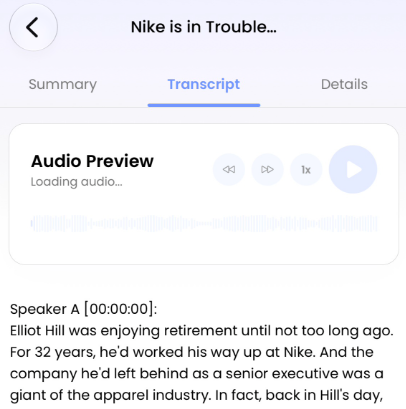
Once your recording is available in DictaAI, the next step is to generate its transcript.
Submit the selected recording for AI transcription. DictaAI processes the audio and converts the spoken conversation into text that is easier to review, reference, download, and analyze.
Depending on the recording, your transcript can include:
For example, after recording a 45-minute client meeting, you can review the transcript instead of replaying the full conversation, then use DictaLens to explore important details such as project decisions, deadlines, follow-up tasks, or recurring discussion points.
Review the transcript before using it for professional purposes. Speaker labels, names, numbers, and technical terminology may need correction, particularly when the recording contains background noise or overlapping speech.
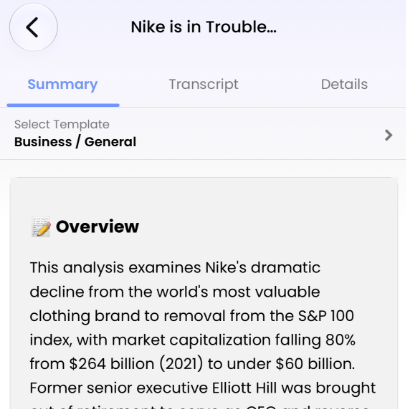
A transcript makes a conversation easier to review, but understanding what matters may still require reading several pages.
DictaLens, DictaAI's AI conversation analysis tool, helps you explore recorded conversations beyond the spoken words.
Once your transcript is ready, access DictaLens through your DictaAI account and select the relevant transcript for analysis.
In the DictaAI analysis workspace, you can select files and use DictaLens to:
The Ask Anything feature allows you to enter custom questions, while the Idea Palette provides predefined prompts for different tasks.
For detailed instructions on selecting files, running analysis, and using these features, refer to the DictaLens guide.
The more specific your question, the more useful the analysis can be.
Here are a few examples:
For business meetings:
"What were the main decisions made during this meeting, and what follow-up tasks were assigned?"
For customer interviews:
"What concerns did the customer mention about the product or service?"
For lectures:
"Summarize the main concepts discussed and list important definitions."
For multiple research interviews:
"What recurring concerns appeared across these interviews, and where did participants express different opinions?"
Suppose you've completed ten customer interviews. Instead of reading every transcript from beginning to end, you can use DictaLens to identify common concerns and then return to the original responses for closer examination.
AI-generated insights should still be checked against the source material, especially when the findings will inform important decisions or published research.
Also Read: How Market Researchers Can Analyze 10+ Hours of Interviews Without Reading Every Transcript
Even a capable transcription tool depends on the quality of the audio it receives. A few recording habits can make your transcripts easier to review and improve their reliability.
Background conversations, traffic, and other sounds can make speech harder to recognize. Whenever possible, record in a quiet space where the speakers can be heard clearly.
Keep your phone close enough to capture the speakers without obstructing the conversation. For group discussions, place it where participants can be heard as evenly as possible.
When several people speak simultaneously, AI may have difficulty separating their words and assigning accurate speaker labels.
Encouraging participants to speak one at a time can improve recording clarity.
AI transcription may misinterpret unfamiliar names, acronyms, technical terminology, or industry-specific expressions.
Review these details carefully before sharing or referencing the transcript.
Timestamps and synchronized playback can help you return to particular moments in a recording.
For interviews, professional meetings, and research discussions, check important quotations, numbers, and decisions against the original audio rather than relying entirely on the transcript or AI-generated summary.
These simple steps can make a noticeable difference in how useful your final transcript becomes.
Recording a face-to-face conversation on your iPhone is different from capturing an online meeting.
For meetings held through Zoom, Google Meet, or Microsoft Teams, DictaAI offers a separate feature called DictaAI Notetaker.
Available with the Business plan, Notetaker can join supported online meetings, capture conversations, and generate transcripts and summaries.
You can also analyze those transcripts with DictaLens to identify decisions, follow-up tasks, and recurring discussion points.
If your work involves frequent virtual meetings, the DictaAI Notetaker guide explains how to schedule meeting recordings, connect supported calendars, and review completed transcripts.
Also Read: The 5 Things Every Productive Meeting Should Produce
A voice recording can preserve an entire conversation, but it's the ability to find, review, and analyze that information that makes it valuable.
With DictaAI, you can record conversations on your iPhone or iPad, turn audio into searchable transcripts, and use DictaLens to explore important details without repeatedly listening to lengthy recordings.
Whether you're reviewing an interview, revisiting a lecture, or organizing meeting notes, the process becomes easier when recording, transcription, and analysis work together.
The DictaAI Basic plan includes 60 free transcription minutes every month, giving you an opportunity to try the workflow with your own recordings.
Download DictaAI on the App Store: Get 60 Free Transcription Minutes Every Month
Also available on Android.
How can I record and transcribe audio directly on my iPhone?
Download DictaAI, sign in, and use the app's built-in recording feature to capture your conversation. Once the recording is saved, submit it for AI transcription and review the generated text.
Can I convert existing iPhone voice recordings into text using AI?
Yes. DictaAI supports uploading existing audio and video recordings from your device and supported sources, including Google Drive, Dropbox, and YouTube. You can then generate a searchable transcript.
How can I summarize a conversation recorded on my iPhone?
After generating a transcript in DictaAI, open it in DictaLens and request a summary. You can also ask questions about important discussion points, decisions, and follow-up tasks.
Can I use DictaAI to transcribe interviews, lectures, and meetings?
Yes. You can record in-person conversations or upload existing recordings for transcription. For supported Zoom, Google Meet, and Microsoft Teams meetings, DictaAI Notetaker is available with the Business plan. Always obtain the necessary recording consent.
How can I improve the accuracy of AI transcription on my iPhone?
Record in a quiet environment, position your phone close enough to capture clear speech, and minimize overlapping conversations. Review speaker labels, names, specialized terminology, and important statements against the original audio.
Can DictaLens analyze multiple interview transcripts together?
Yes. DictaLens supports multi-file analysis, allowing you to examine recurring topics, compare responses, and identify patterns across several conversations. Review the relevant original transcripts before drawing final conclusions.

.png)
Comments
Glynnis Campbell
This is a test comment!